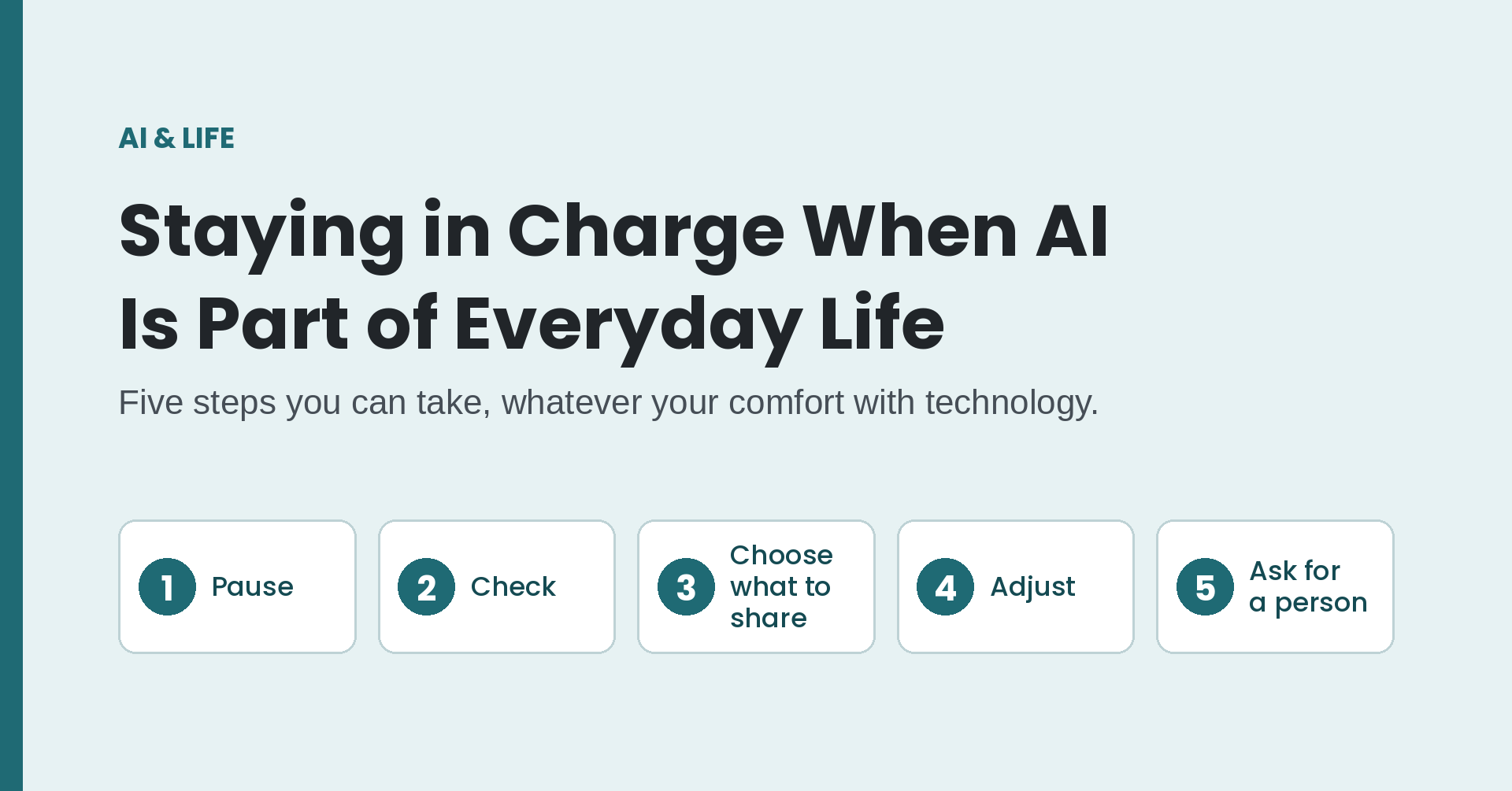
Step 1: Pause before you accept
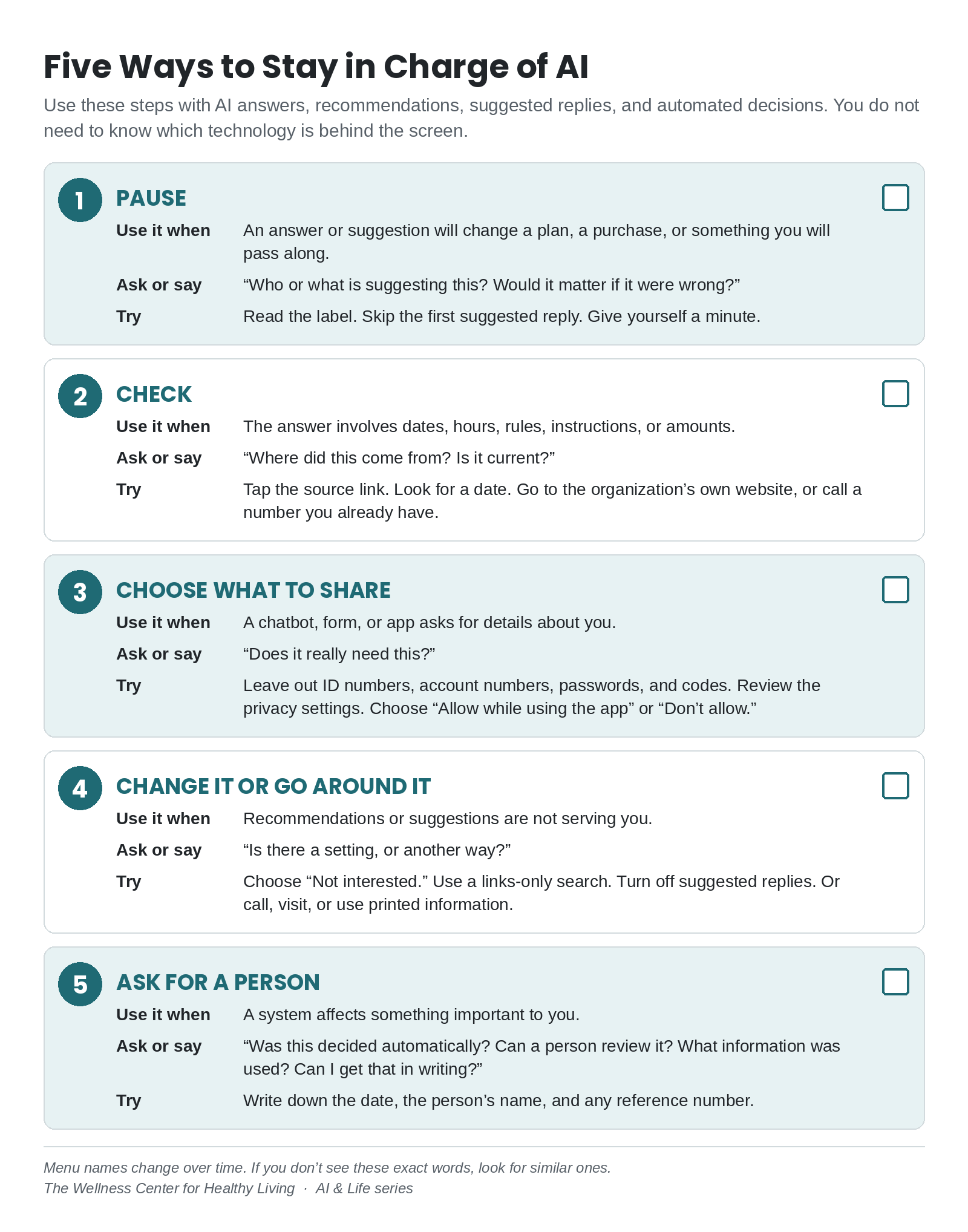
What to do: Before you act on an answer, tap a suggestion or accept a result, take a moment. Read any label. Words such as “AI Overview,” “Suggested for you,” “Recommended” or “Because you watched,” and ready-made reply buttons, tell you a program is offering something.
When it helps: When the answer will change a plan, a purchase or something you’ll pass along to others. A pause also helps whenever something feels rushed. Urgency is a reason to slow down.
What to ask yourself: “Who or what is suggesting this?” and “Would it matter if it were wrong?” If it wouldn’t matter, as with a song or a recipe idea, go ahead and enjoy it.
Step 2: Check important information at the original source
What to do: Go to the source that would know for sure: the organization’s own website, a printed notice, a statement you already have, or a phone number from a card or bill in your hands.
When it helps: With dates, hours, rules, instructions, prices and eligibility, and with anything you’ll repeat to someone else.
What to click or say: Beside an AI search summary, tap the small link to see where the information came from, and look for a date. If you’d rather see ordinary results, scroll past the summary to the list of links below it. On the phone, ask: “Where does this information come from?” and “Is this current?” Few people take this step. In a Pew Research Center
study of real browsing, people clicked a source link inside a Google AI summary in only 1% of the visits that showed one.
Step 3: Choose what personal information to share
What to do: Decide before you type. Share only what an app, form or chatbot needs to do the job.
When it helps: Any time a chatbot, voice assistant, website form or new app asks about you.
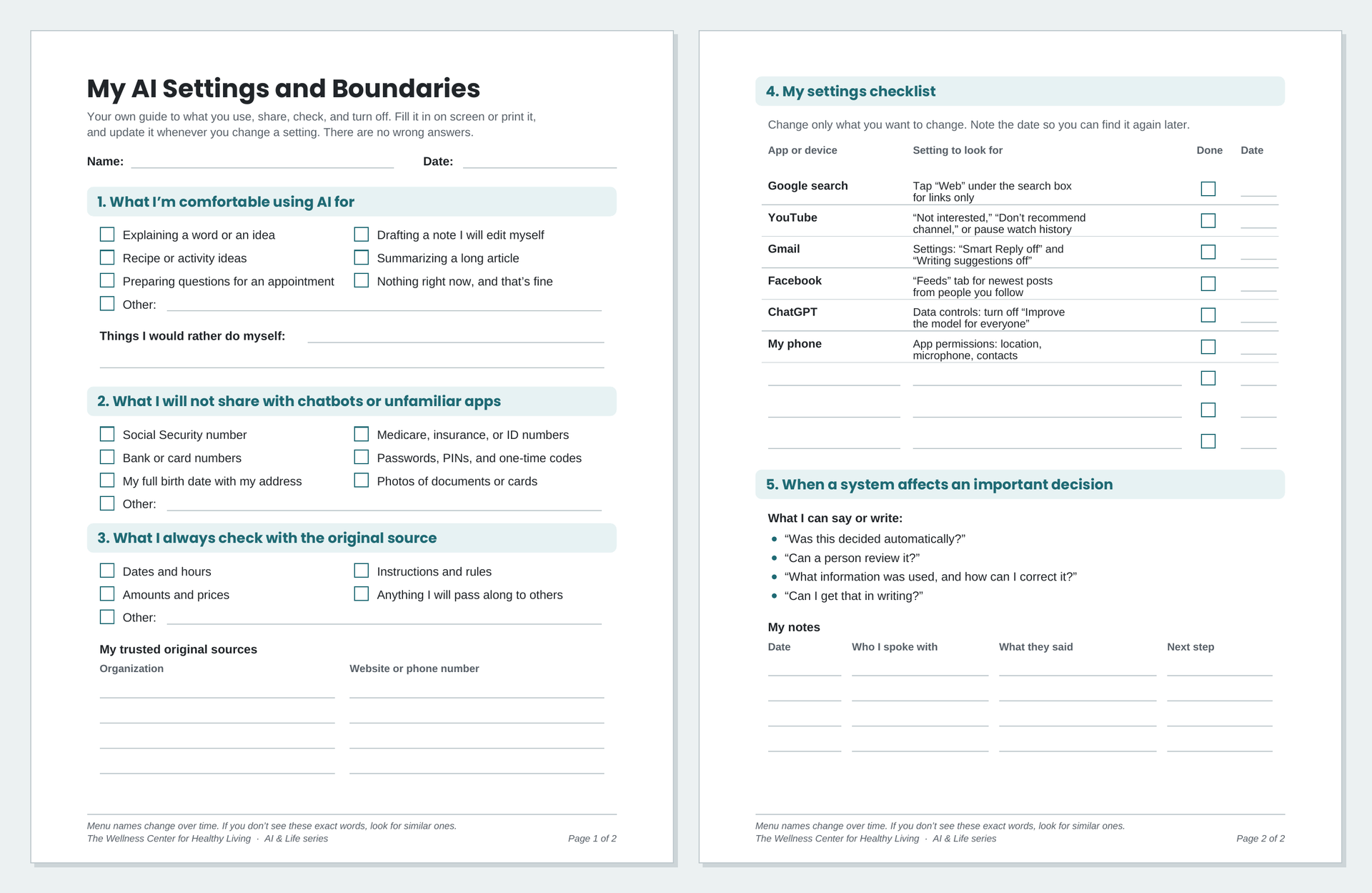
What to keep out of chatbots: Social Security, Medicare, insurance and other ID numbers; bank and card numbers; passwords, PINs and one-time codes; and photos of documents. You can ask a general question without saying who you are.
What to click: Many chatbots have privacy settings. In ChatGPT, for example, Settings, then Data controls, has an option called “Improve the model for everyone.” OpenAI says that when you
turn it off, new conversations won’t be used to train its models. When a phone app asks for your location, microphone or contacts, look for a limited choice, such as allowing access only while you use the app, or decline.
Step 4: Change recommendations or settings, or use another route
What to do: Tell the app what you want, or step around it.
When it helps: When recommendations drift toward things you don’t want, or suggestions get in your way.
What to click: On YouTube, tap the three dots beside a video and choose “Not interested” or “Don’t recommend channel.” YouTube says this feedback
may be used to tune your recommendations, and you can also pause or delete your watch history. On Facebook, the Feeds tab
shows the newest posts from friends, groups and Pages. In Gmail, Smart Reply and writing suggestions each
have an off switch in Settings.
Another route counts too: If there’s no setting, or you’d rather not hunt for one, call, visit, use printed information or ask someone you trust. Choosing a different path is a way of staying in charge.
Step 5: Ask for a person or a review when it matters
What to do: When a computer system seems to have made or shaped a decision that matters to you, ask for a person to take a look.
When it helps: When an application is turned down, an account is flagged or limited, a service changes, or you get an answer you can’t act on.
What to say or write:
- Was this decided automatically?
- Can a person review it?
- What information did you use, and how can I correct it?
- Can I have that in writing?
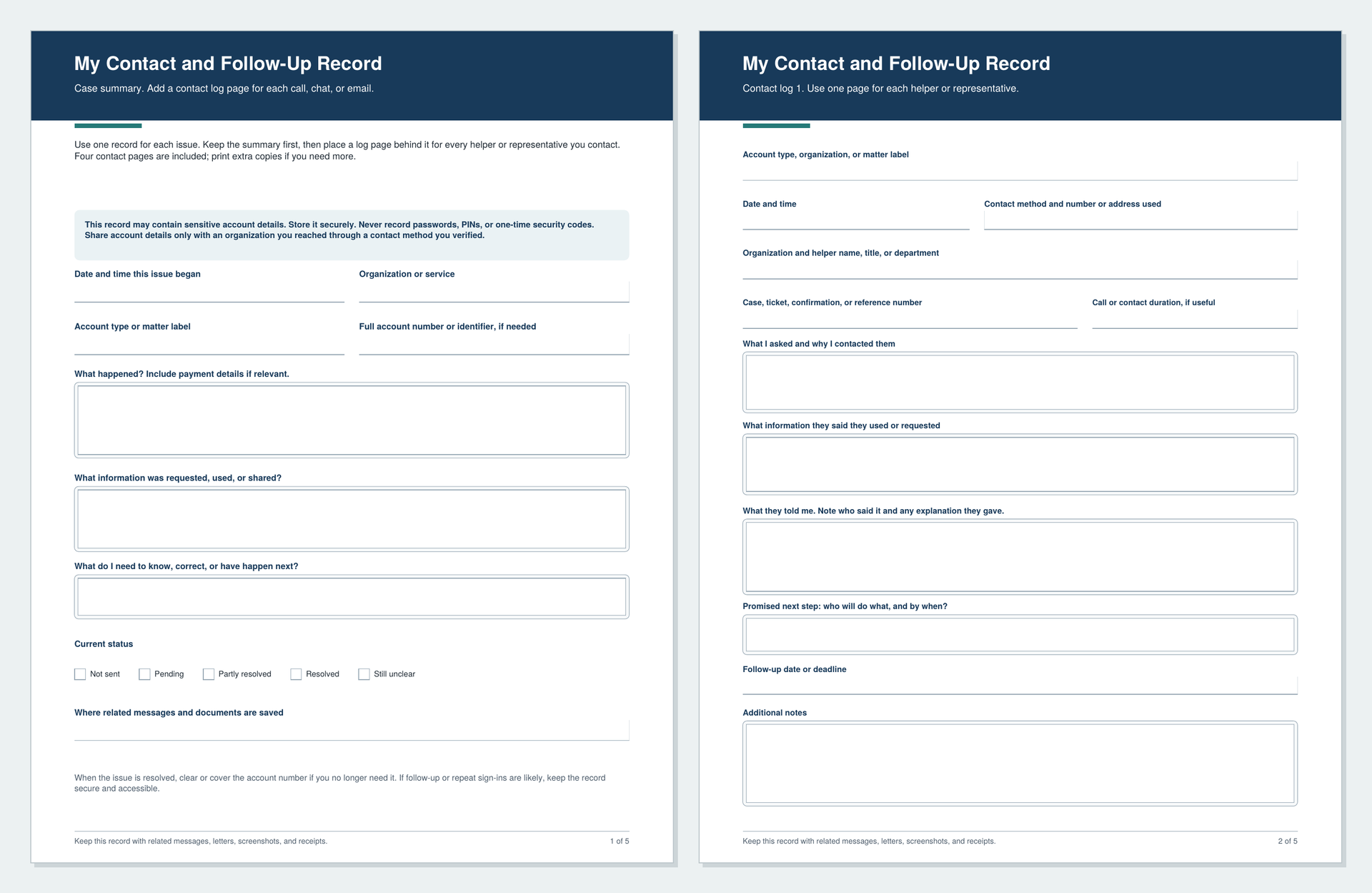
Each time you call, chat or email, write down the date, who you spoke with, what they said and any reference number. The free Contact and Follow-Up Record below gives you one place to keep it all. If a letter or notice is involved, look for a section on questions or appeals. The preview shows the summary page and a contact log page, so you can see how it works before you download it.
Not every organization offers a review, and asking won’t always change the result. Still, a calm, clear request puts your situation in front of a person, and your notes make it much easier to follow up. A later article in this series covers how to reach a person when a chatbot or phone menu is in the way.